Install from ZIP
- Unzip the file
- Move the app
 Open the app
Unzip the download, move Do Not Sleep.app to the Applications folder in Finder, and open it.
Latest GitHub release Do Not SleepEnglish guide
Do Not Sleep is a free menu bar app for macOS 13 or later. Keep your Mac, its display, or both awake during builds and downloads. Set a timer to turn off sleep prevention automatically. Install it from a ZIP file or with Homebrew.
macOS 13 Ventura or later · Apple Silicon and Intel
Download the ZIP or install with Homebrew in Terminal.
Open the appUnzip the download, move Do Not Sleep.app to the Applications folder in Finder, and open it.
Latest GitHub releaseOn a Mac with Homebrew installed, open Terminal and run these two commands in order.
brew tap umo-im/do-not-sleep https://github.com/umo-im/do-not-sleep.git
brew install --cask umo-im/do-not-sleep/umo-do-not-sleepWhen installation finishes, open Do Not Sleep from Applications.
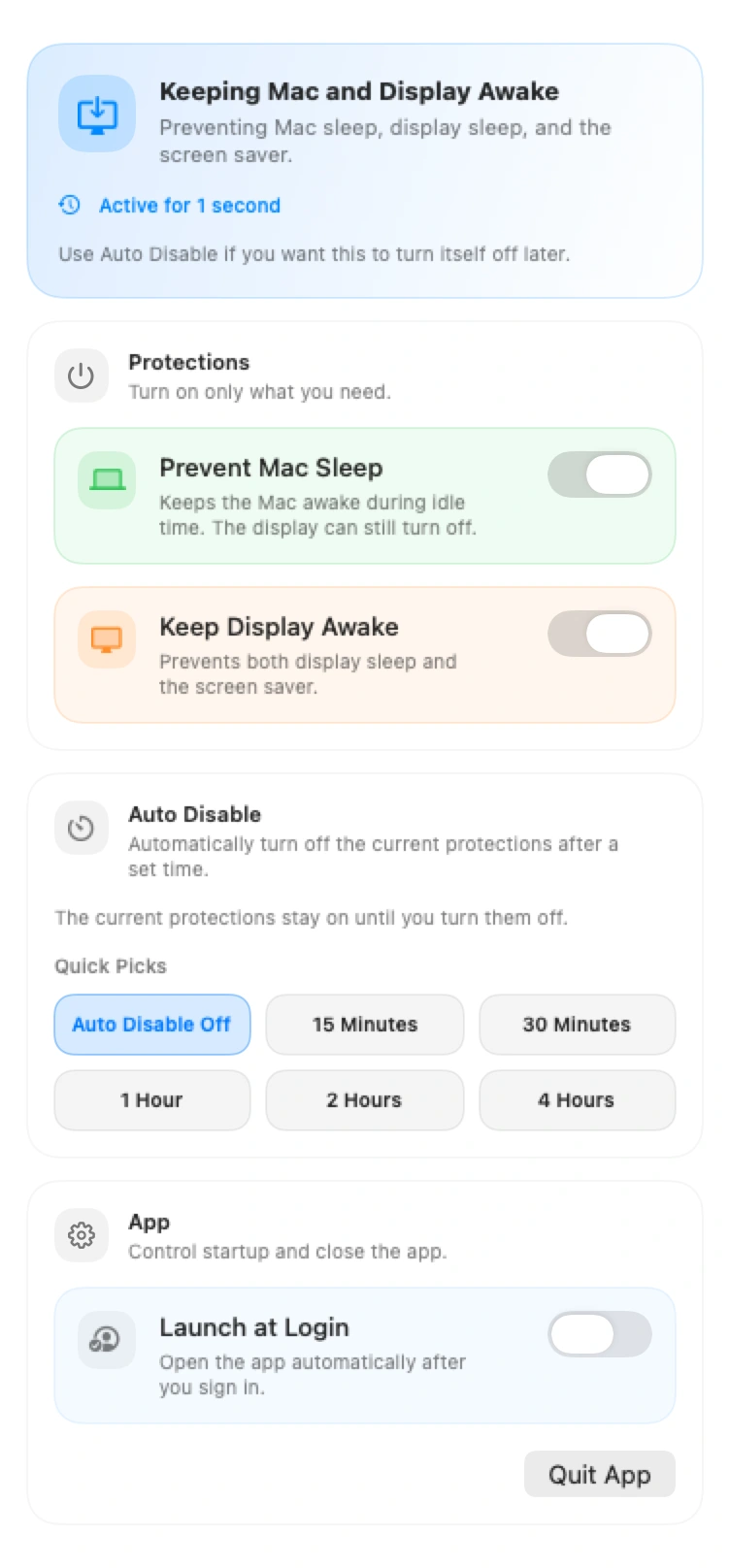
Click the Do Not Sleep icon in your Mac’s menu bar to open these settings. The icon changes to show which options are on.
See how to keep your Mac or display awake, set an auto-disable timer, and launch the app at login.
Install Do Not Sleep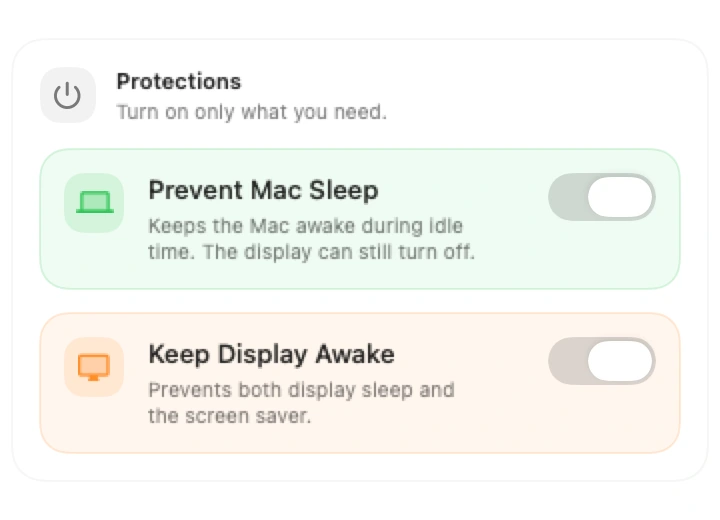
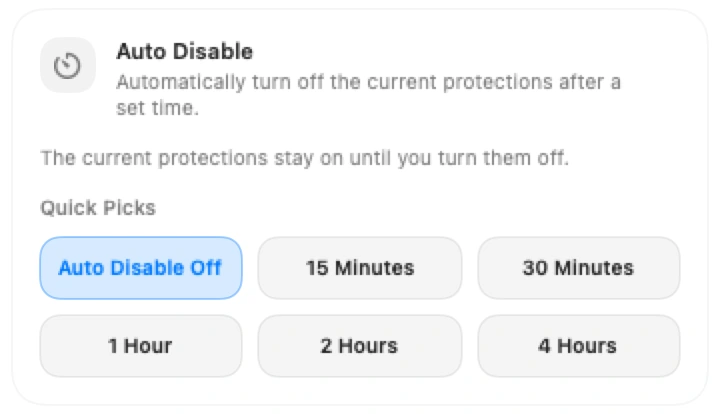
When time runs out, the active sleep prevention options turn off. If you cancel the timer, they stay on.
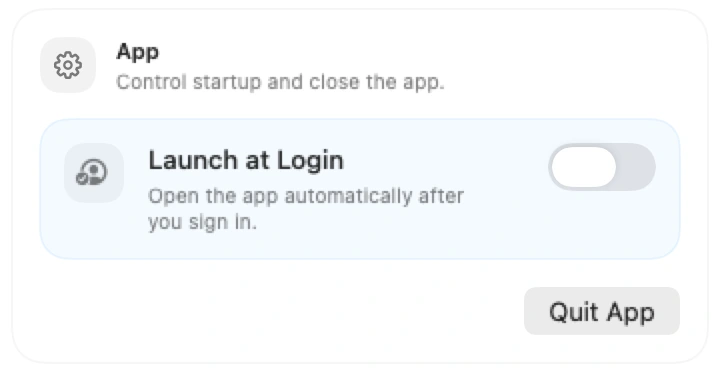
Turn on Launch at Login to open the app whenever you sign in to your Mac. To close it now, click Quit App in the same panel.